Themes
hdds_viewer includes 8 built-in themes to match your preferences and accessibility needs.
Available Themes
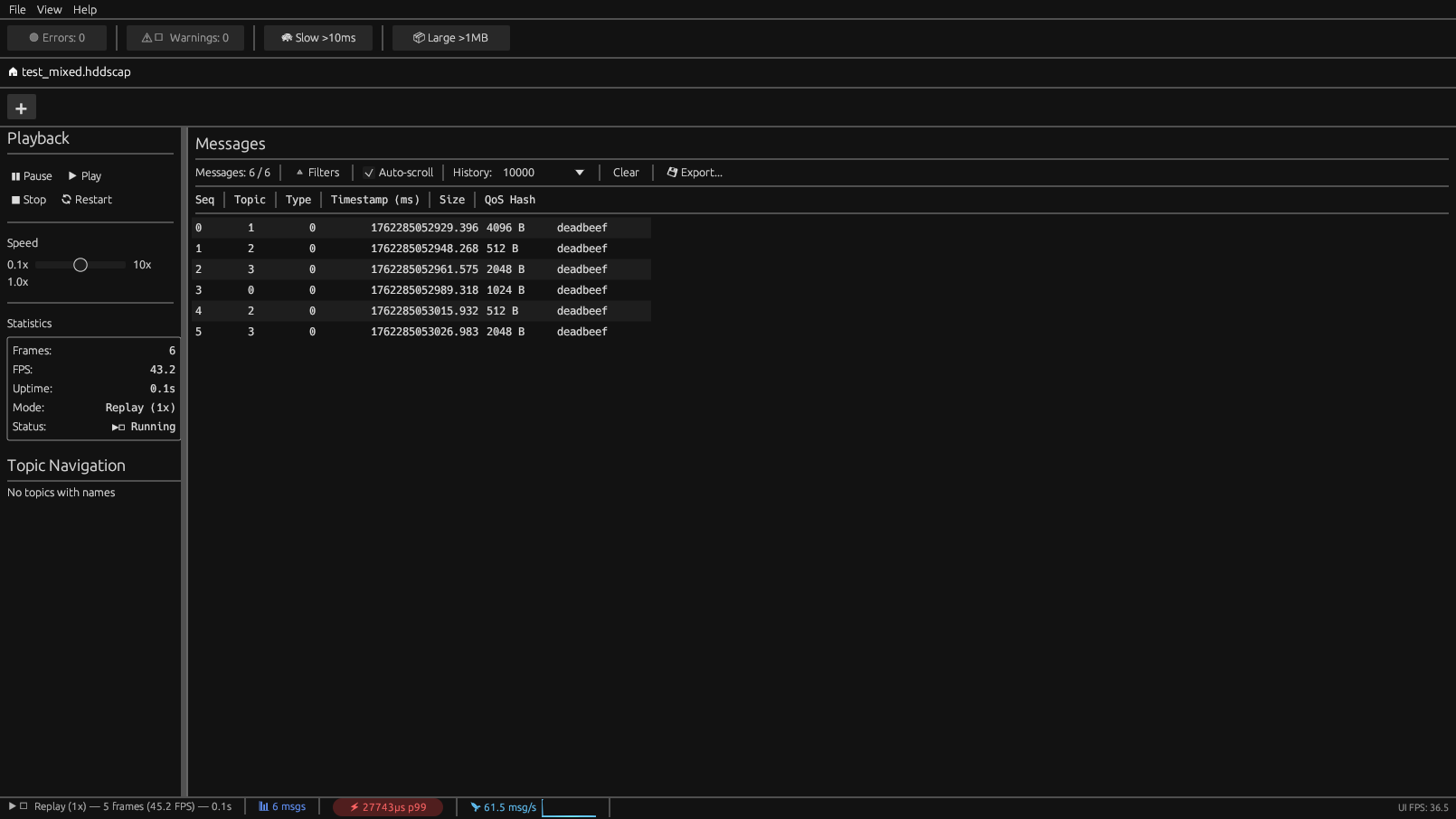
Dark Pro (Default)
Professional dark theme optimized for long sessions. Low eye strain with carefully chosen contrast ratios.
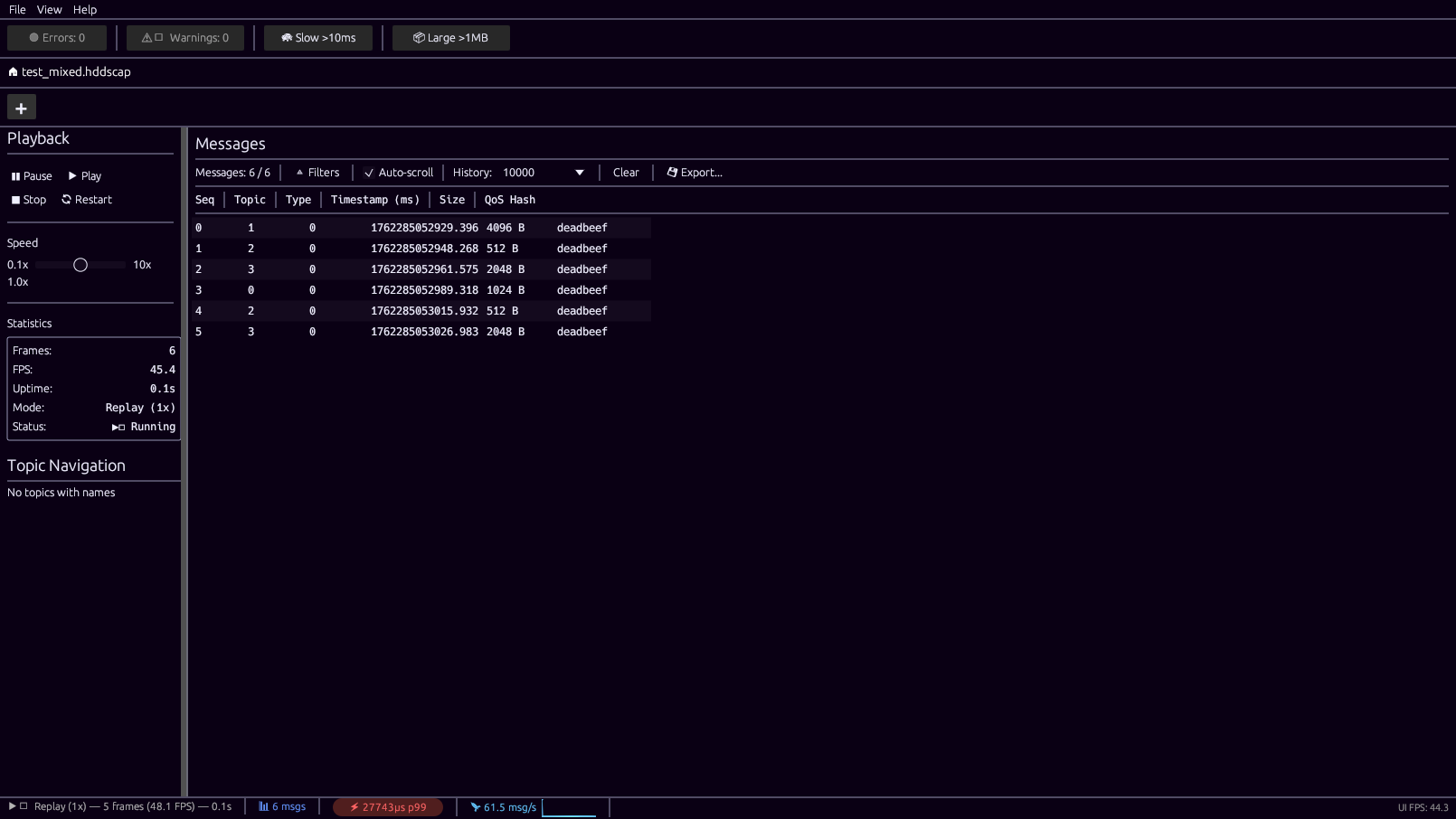
Cyberpunk
Neon-inspired theme with vibrant colors. Magenta and cyan accents.
High Contrast
WCAG AAA compliant theme for maximum accessibility. 7:1+ contrast ratios throughout.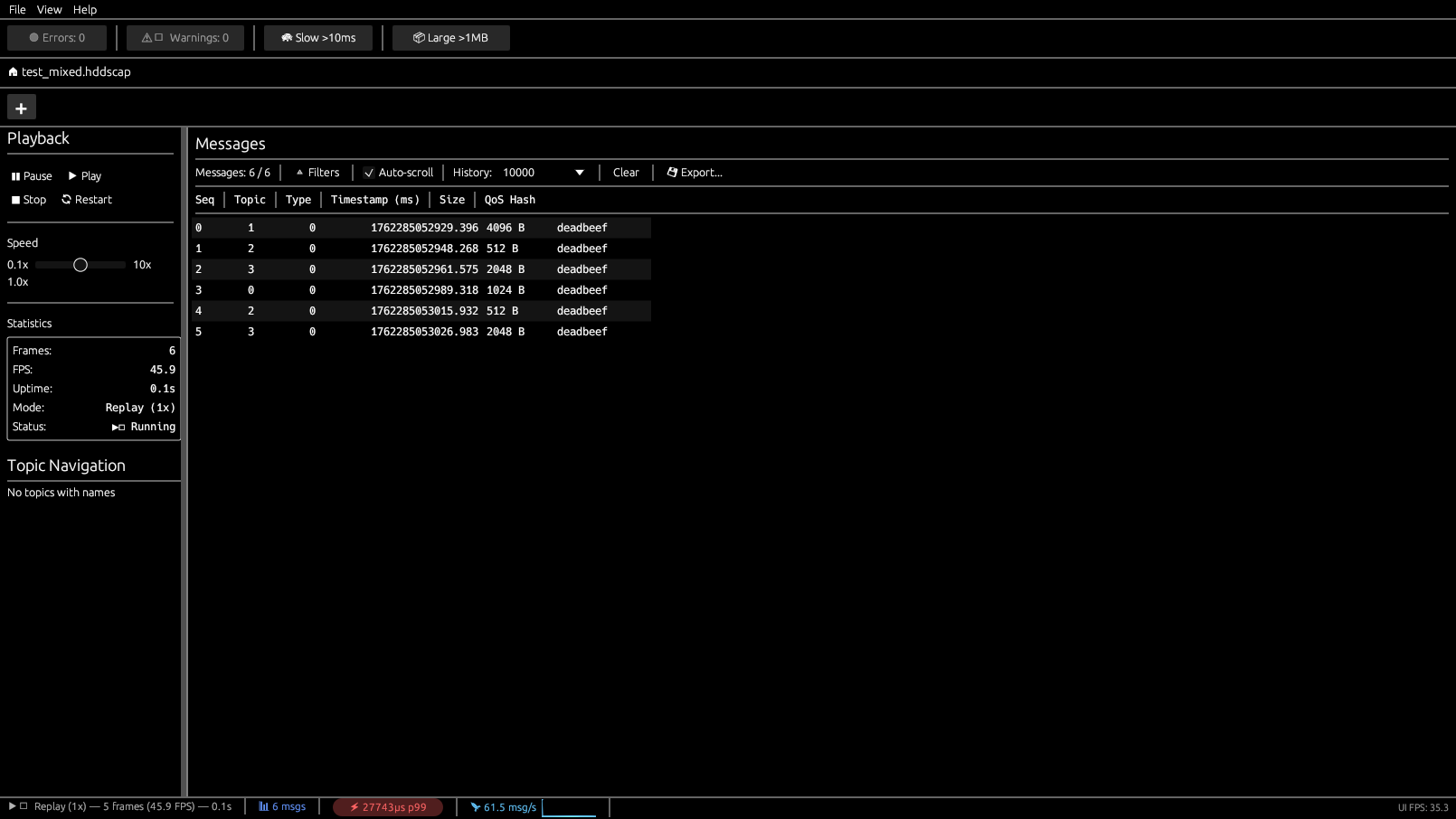
Recommended for:
- Users with visual impairments
- Bright ambient lighting conditions
- Accessibility compliance requirements
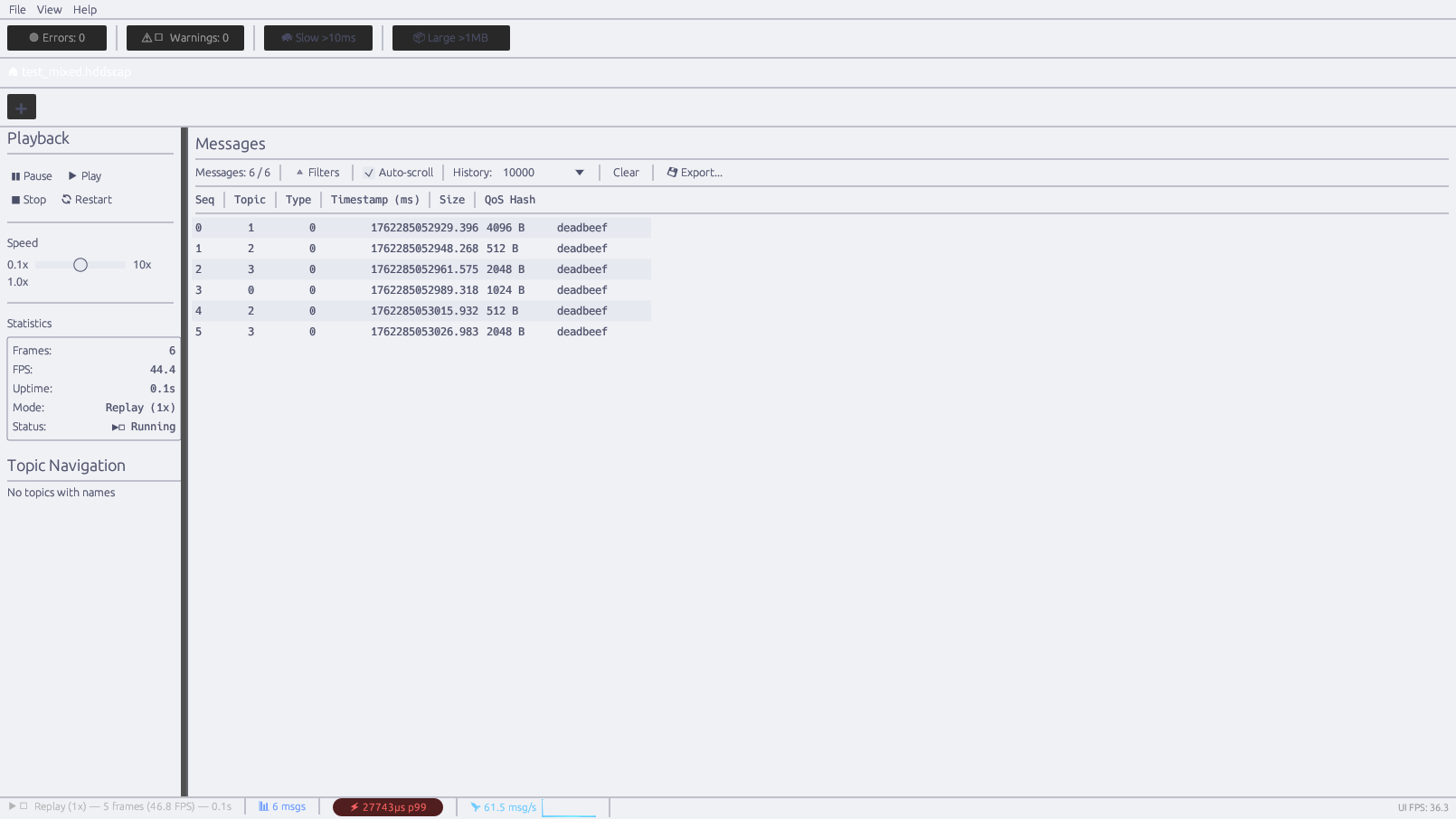
Catppuccin Latte
Light variant of the popular Catppuccin palette. Warm, pastel colors.
Catppuccin Frappe
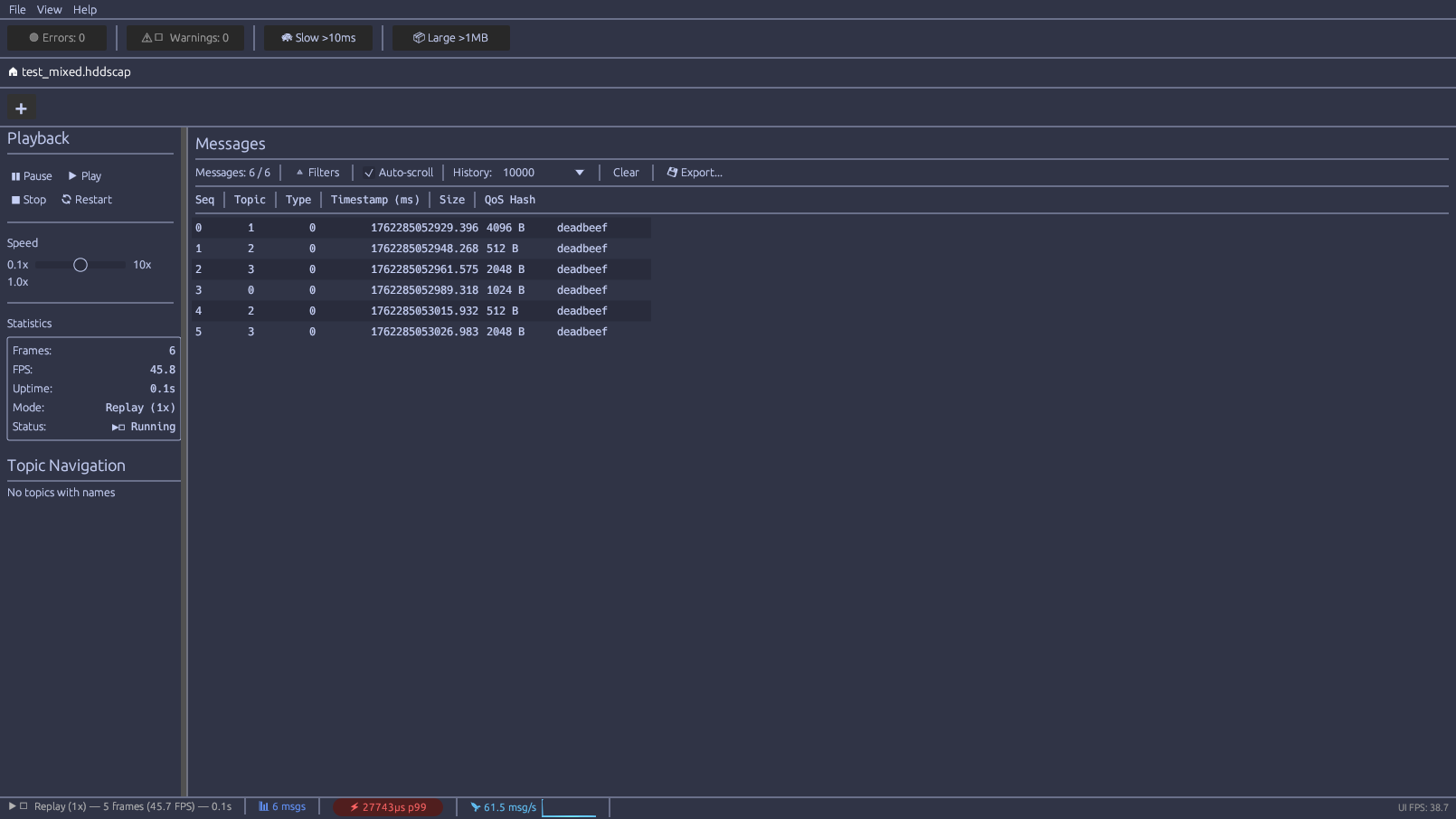
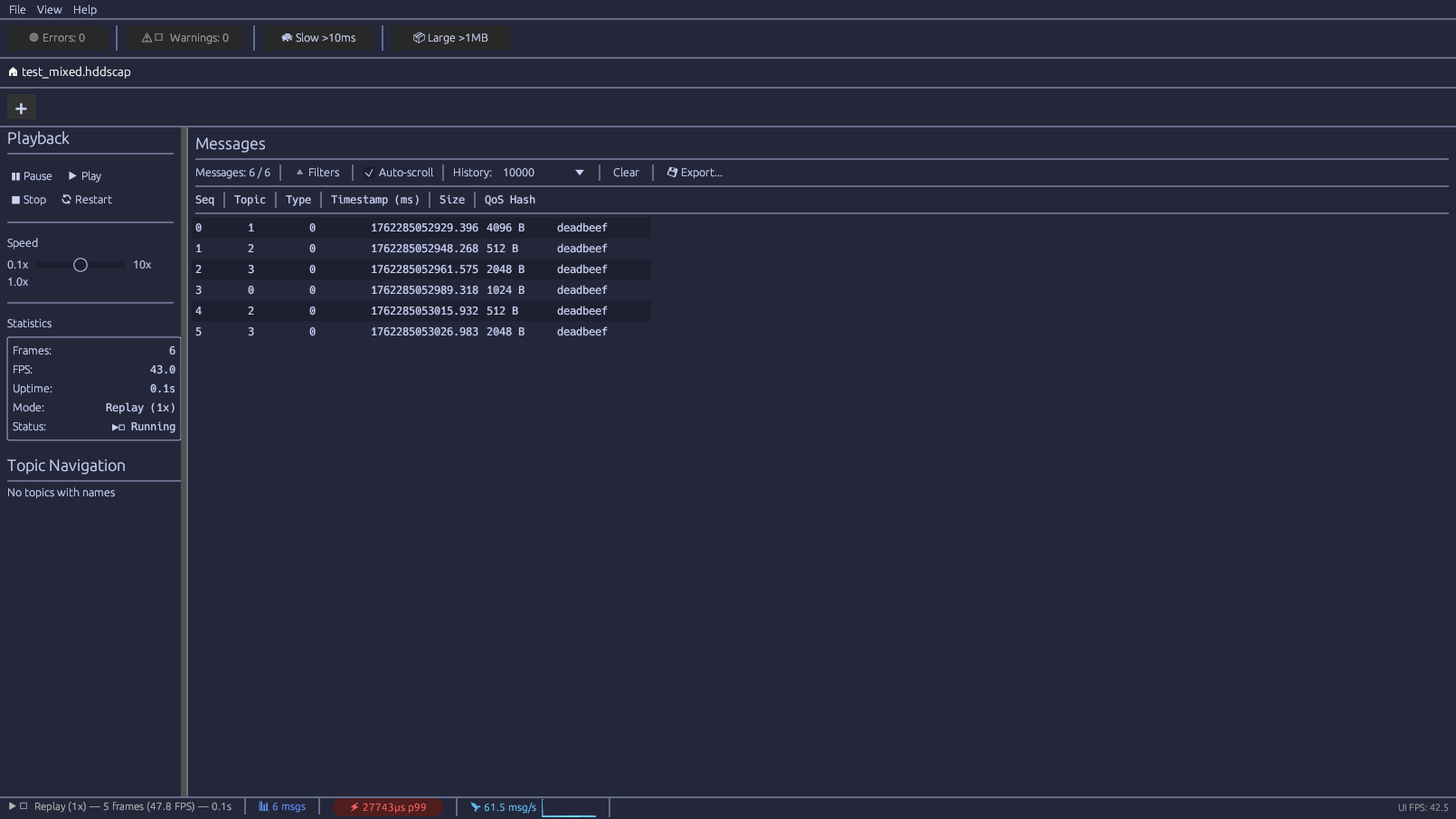
Catppuccin Macchiato
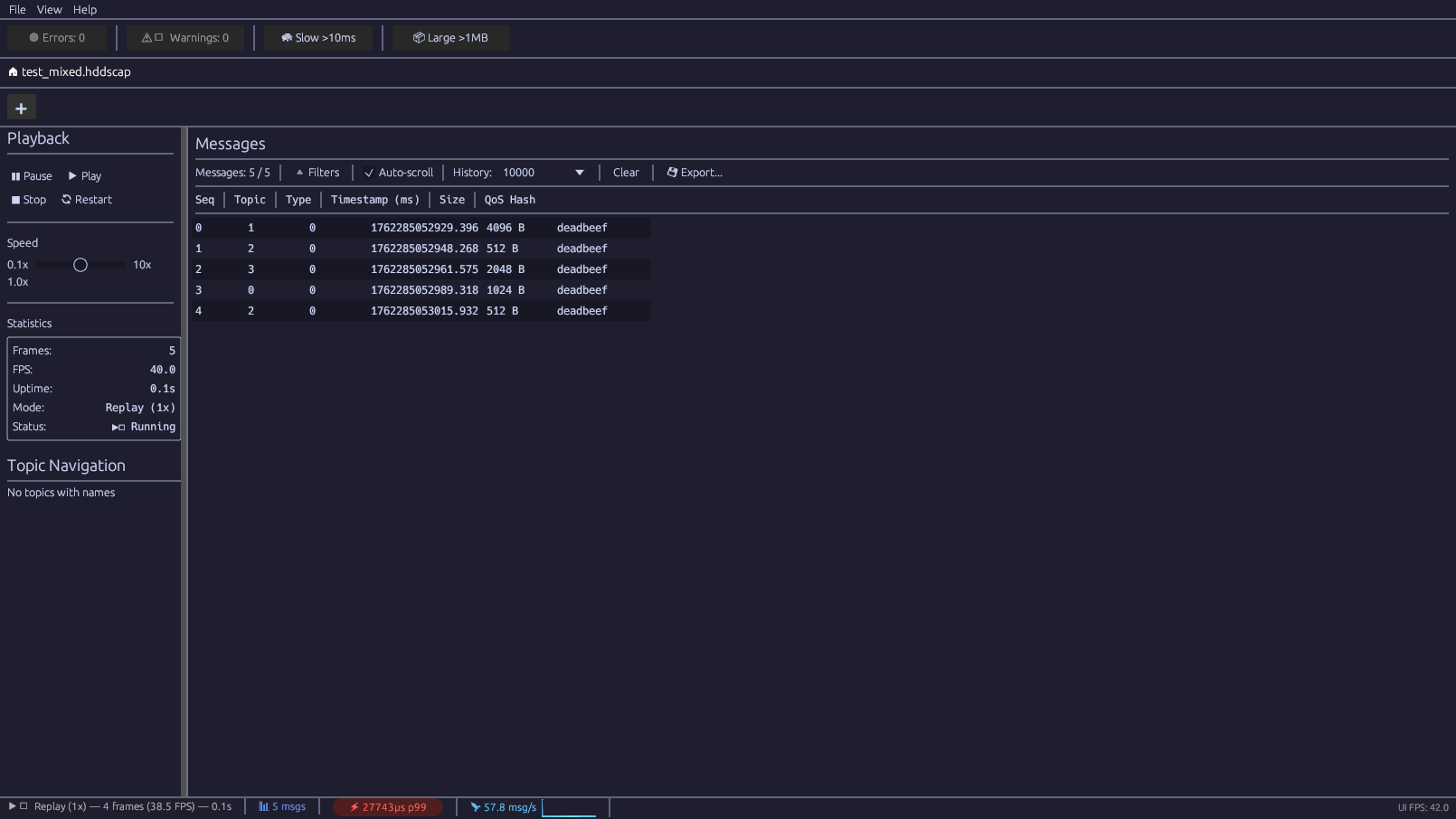
Catppuccin Mocha
Dark variant of Catppuccin. Rich, cozy dark theme.
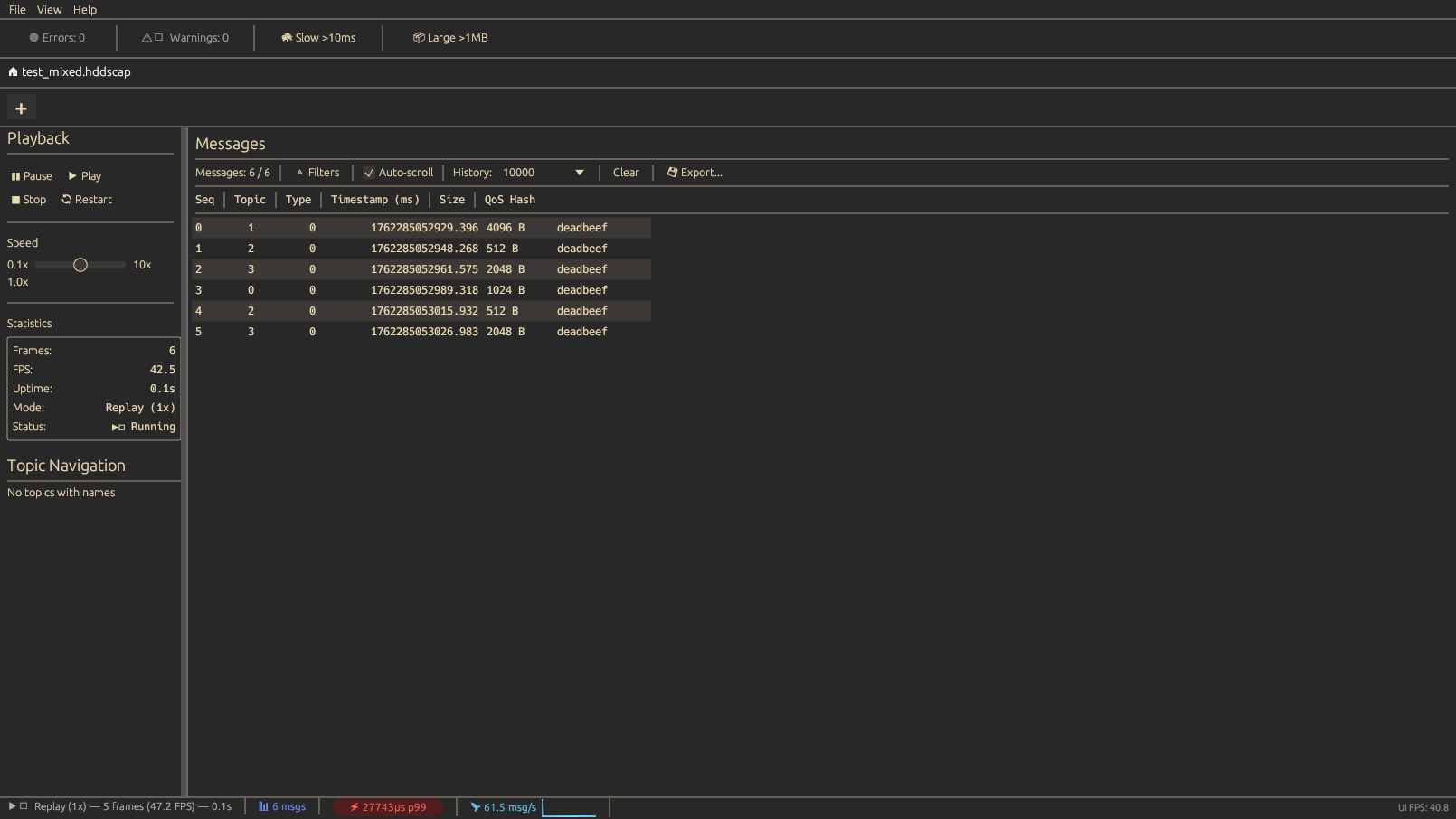
Gruvbox Dark
Retro groove color scheme with earthy tones.
Switching Themes
Via Menu
1. Open View > Theme
2. Select desired theme from submenu
Via Settings
1. Open Settings panel (Ctrl+,)
2. Navigate to Appearance section
3. Select theme from dropdown
Via CLI
# Set theme via environment variable
HDDS_VIEWER_THEME=cyberpunk hdds-viewer

Or in config file ~/.config/hdds-viewer/config.toml
[appearance]
theme = "catppuccin-mocha"
Theme Persistence
Selected theme is saved to:
- Linux:
~/.config/hdds-viewer/config.toml - macOS:
~/Library/Application Support/HDDS Viewer/config.toml - Windows:
%APPDATA%\HDDS Viewer\config.toml
Accessibility Notes
| Theme | WCAG Level | Best For |
| High Contrast | AAA | Visual impairments, bright lighting |
|---|---|---|
| Dark Pro | AA | General use, low light |
| Cyberpunk | A | Personal preference |
| Catppuccin variants | AA | Reduced eye strain |
| Gruvbox variants | AA | Long coding sessions |
Custom Themes (Enterprise)
Enterprise users can define custom themes via TOML:
[theme.custom]
name = "Corporate Blue"
background = "#1a2744"
text = "#e5e9f0"
primary = "#0066cc"
secondary = "#4a90d9"
error = "#ff5555"
warning = "#f1c40f"
success = "#2ecc71"